

You can quickly navigate to this page using
G then R. Learn more about all shortcuts here.Navigate this page
Overview Dashboard
See where reports live and how to create a new one.
Report View
Learn what you can do inside an individual report.
Funnel
Visualize how applications are distributed across pipeline stages.
Time in Stage
Analyze how long applications spend in each stage.
Overview Dashboard
At the top of the page, you’ll find a New Report button, as well as reports that you have already created.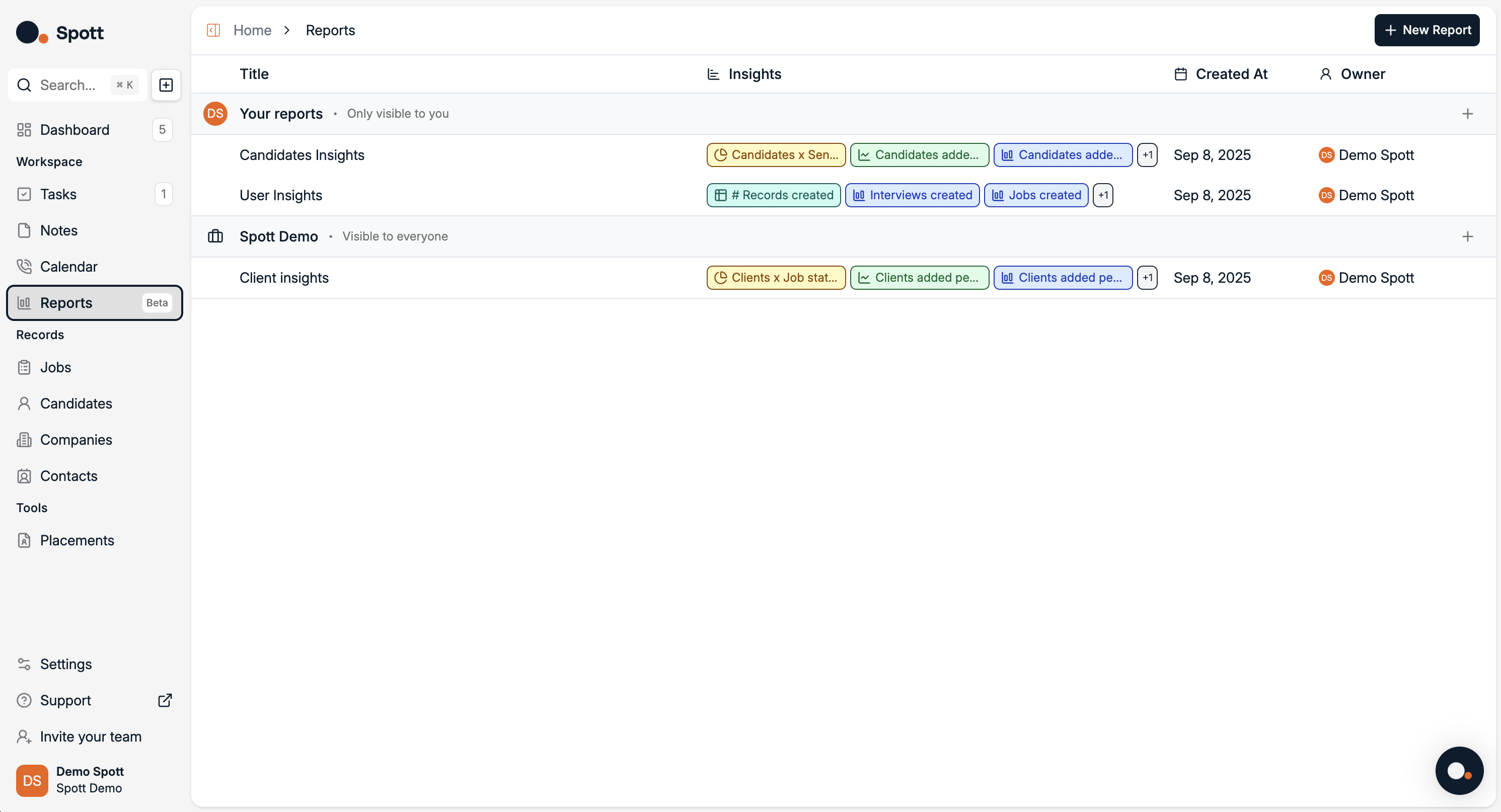
Report View
Access report view by clicking on a report or creating a new one. A report aggregates your data and displays it through visual dashboards.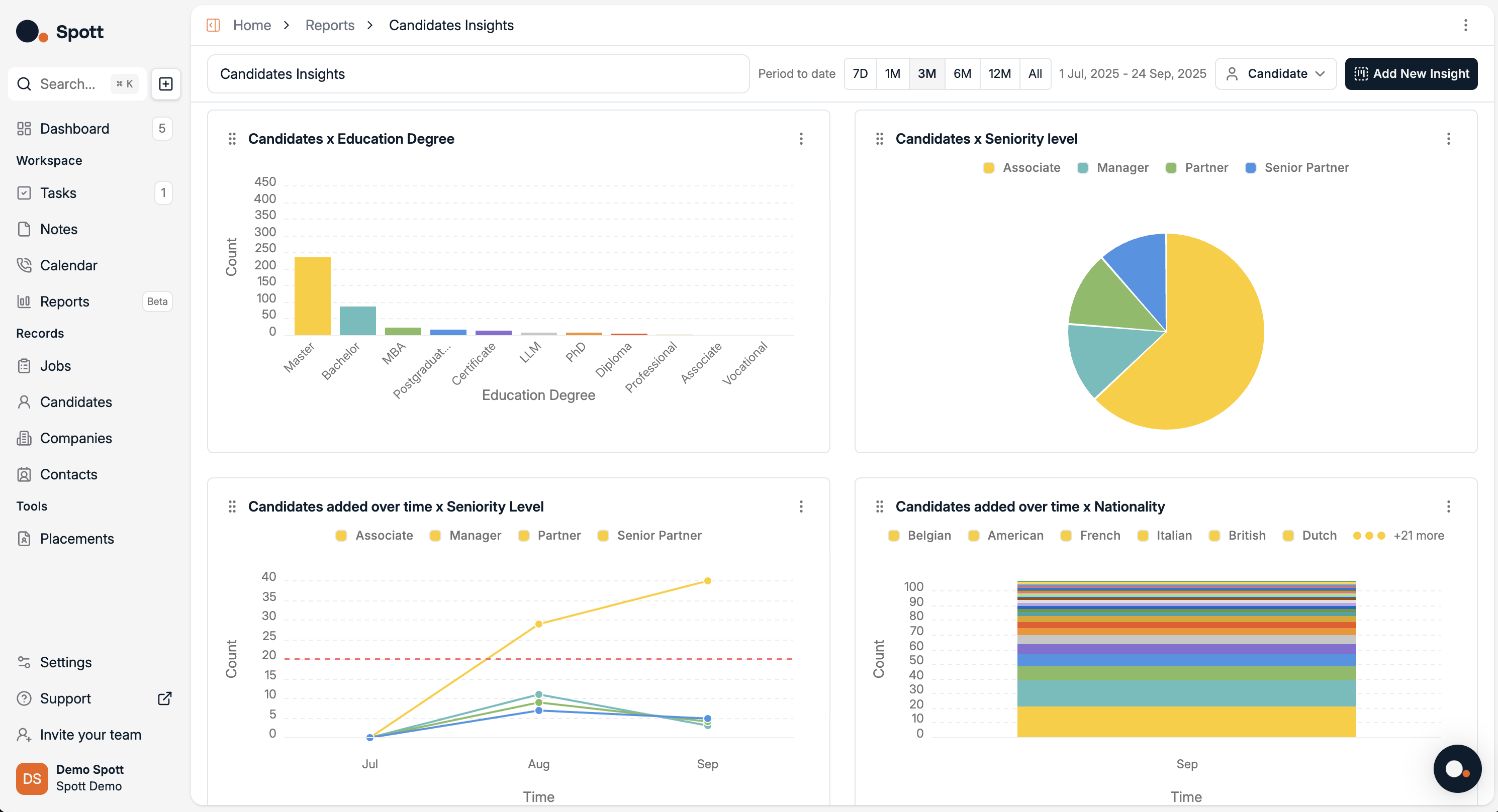
- Change the reporting period by selecting
7D, 1M, 3M, 6M, 12M, All, or setting a custom date range. - Switch record type by toggling between
Candidate,Application,Job,Company, etc. (here it’s set to Candidate). - Add a new insight by clicking Add New Insight to create additional visualizations with your own metrics and filters.
- Filter and drill down using filters (for example candidate attributes, time, or job association) to refine the charts.
- Customize chart type and grouping per insight, each insight can be displayed as different chart types and grouped by different fields.
- Save or share reports for presentations and recurring reporting.
Viewing and Customizing Graphs
When you edit or create an insight, a detailed configuration panel opens where you can adjust how data is calculated and displayed. You can:- View data in graphical form (the default visualization depends on the insight type).
- Change the chart type using the chart selector.
- Adjust grouping, metrics, segmentation, and filters.
- Table for raw rows and columns.
- Bar for comparing quantities.
- Line for trends over time.
- Pie for proportions.
- Single Metric for a headline number.
Switching between chart types can help you identify trends more clearly, for example using a bar chart to compare weekly totals or a funnel chart to visualize the recruitment pipeline.
Insight types and record types
The available insight types depend on the selected record type.Available for all record types
When reporting on Candidates, Jobs, Companies, Contacts, or Users, you can create:- Historical Values insights to track how metrics evolve over time
- Pivot insights to break down metrics across multiple dimensions
Application-specific insights
When the record type is set to Application, two additional insight types become available:- Funnel, to visualize how applications are distributed across recruitment stages
- Time in Stage, to measure how long applications spend in each stage
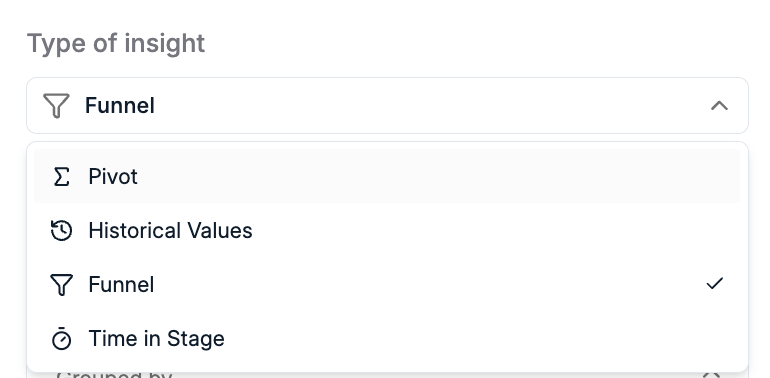
If Funnel or Time in Stage is not available, make sure the record type is set to Application.
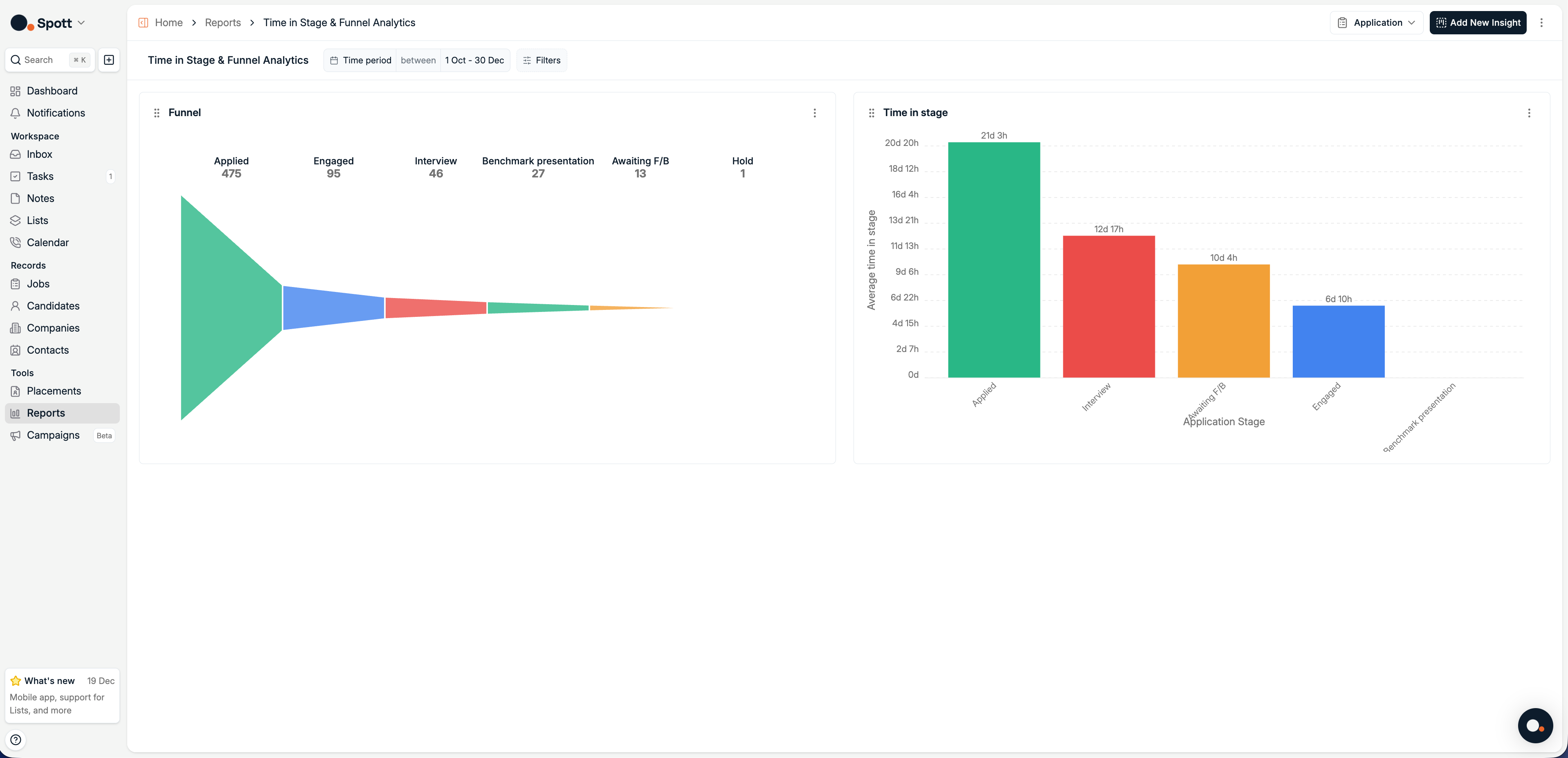
Analytics data updates in real time based on your system’s activity, so your statistics always reflect the most recent changes.