

You can quickly navigate to this page using
Learn more about all shortcuts here.
G then H.Learn more about all shortcuts here.
Create a new outreach campaign
Navigate to Campaigns
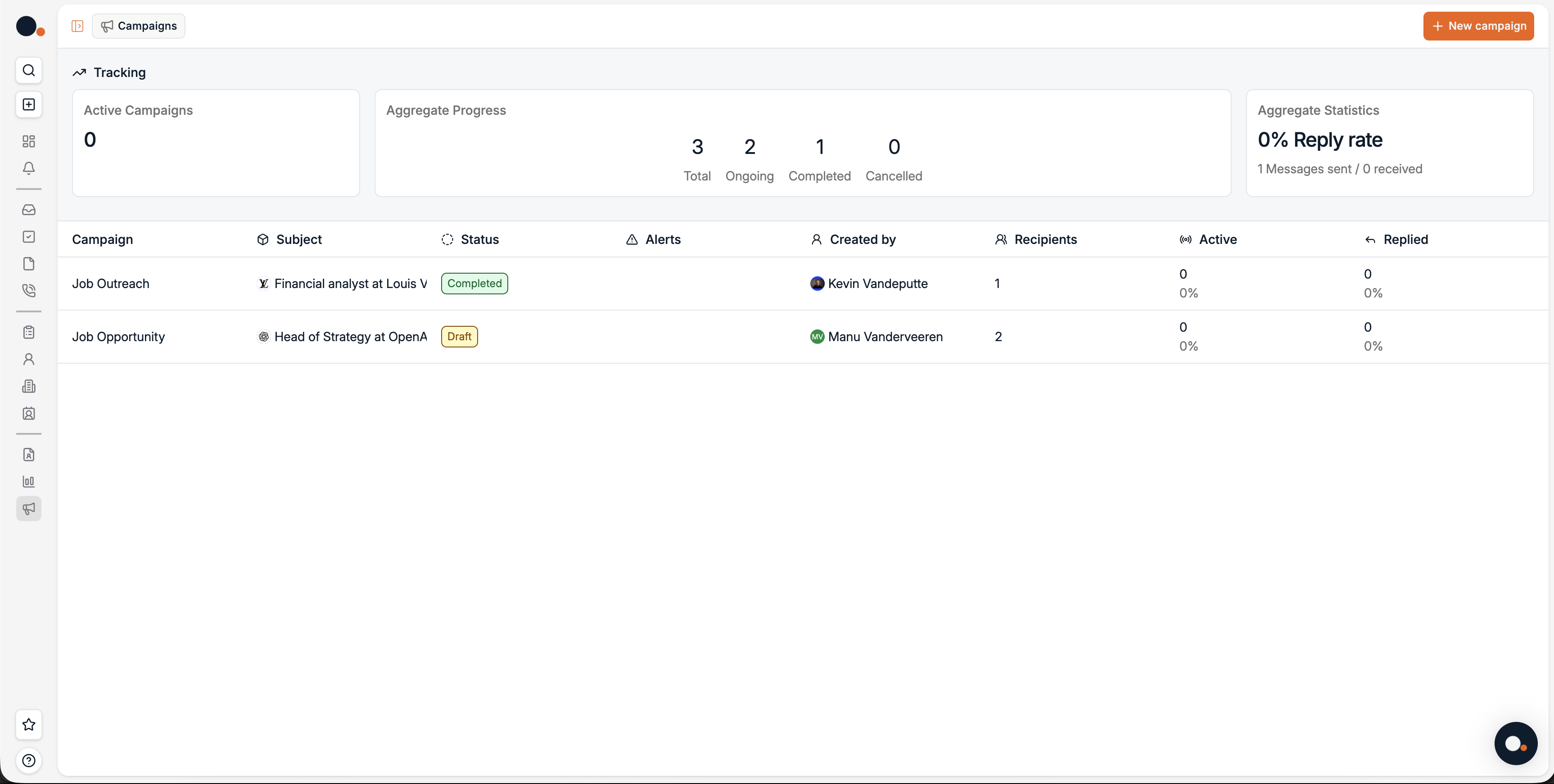
- In Spott, go to Campaigns.
- Click New campaign in the top right.
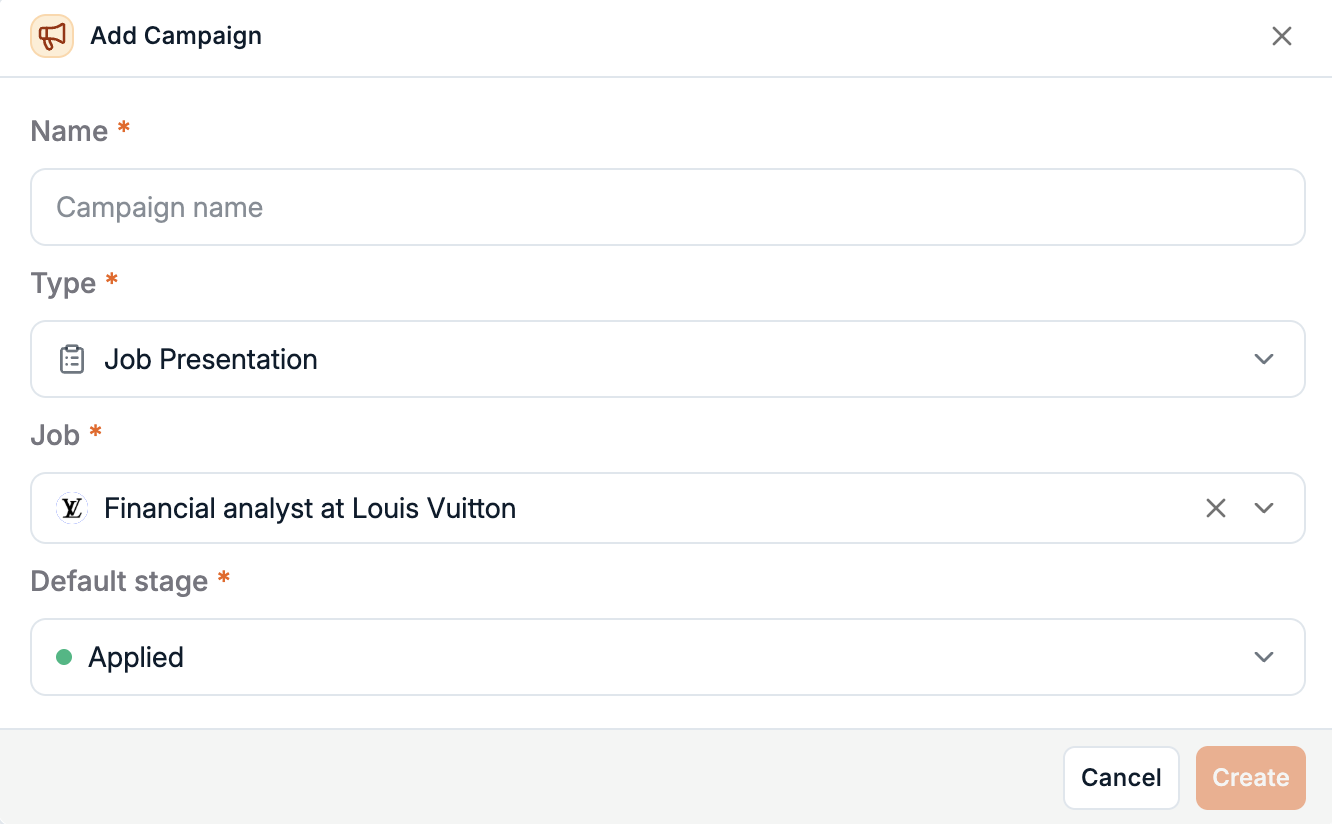
- Give your campaign a name, a type, a job and a default stage.
- New campaigns are created in Draft status by default.
Draft your campaign
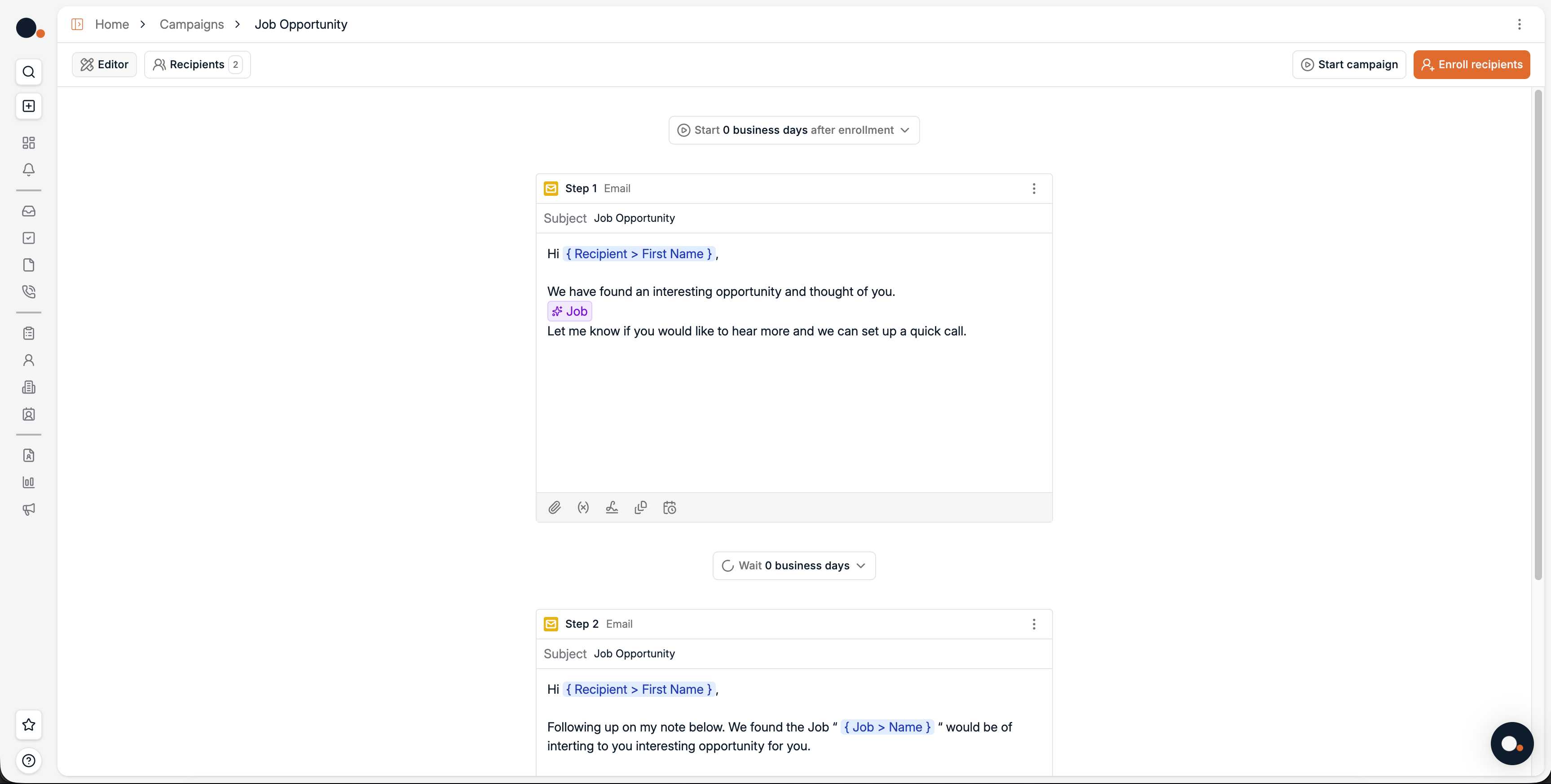
In the campaign editor, you can add one or more email steps.For each email step, you can set: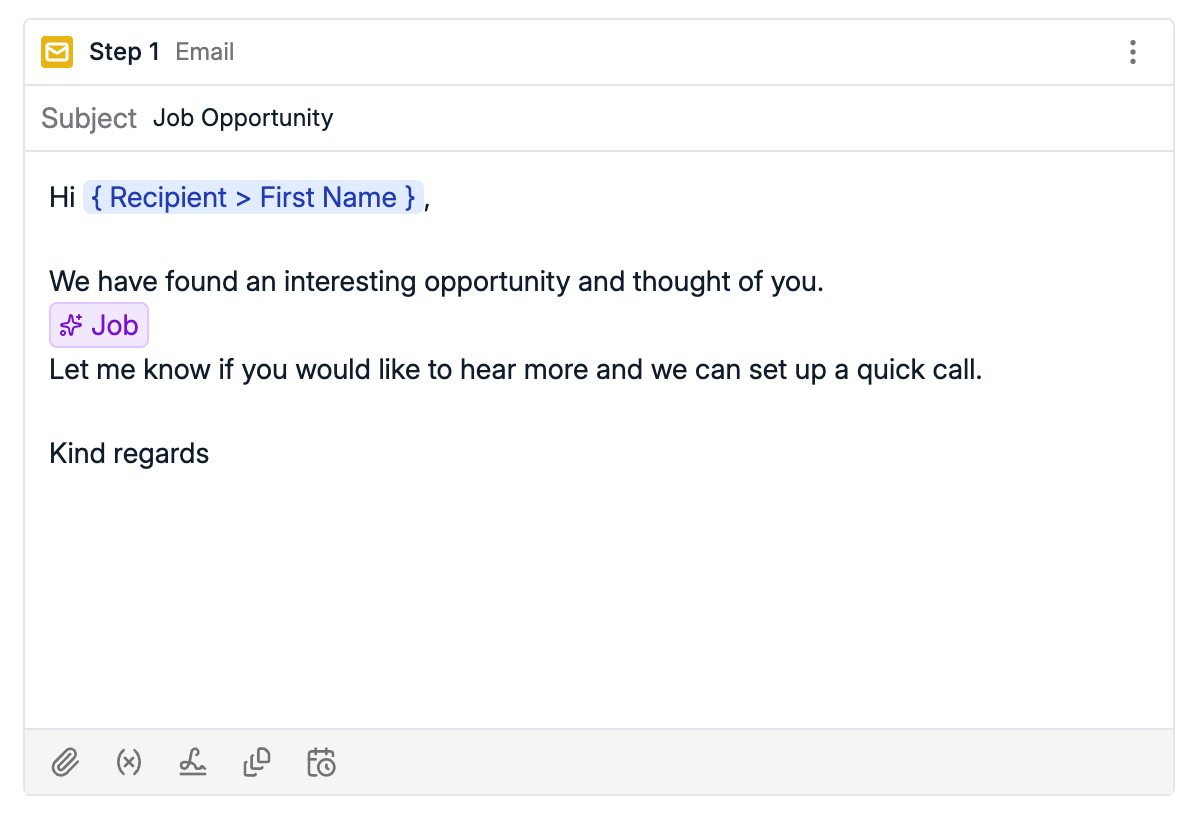
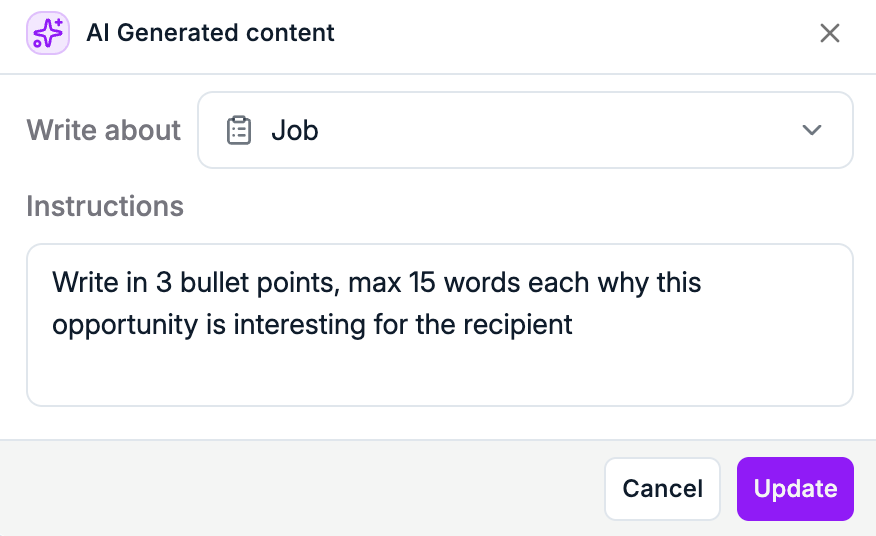
- Subject
- Email content
{ Recipient > First Name }, Inserts the recipient’s first name{ Job > Name }, Inserts the job title associated with the outreach
- Write in 3 bullet points, max 15 words each why this opportunity is interesting for the recipient
Set timing and add steps
You can control when your campaign starts and how emails are spaced.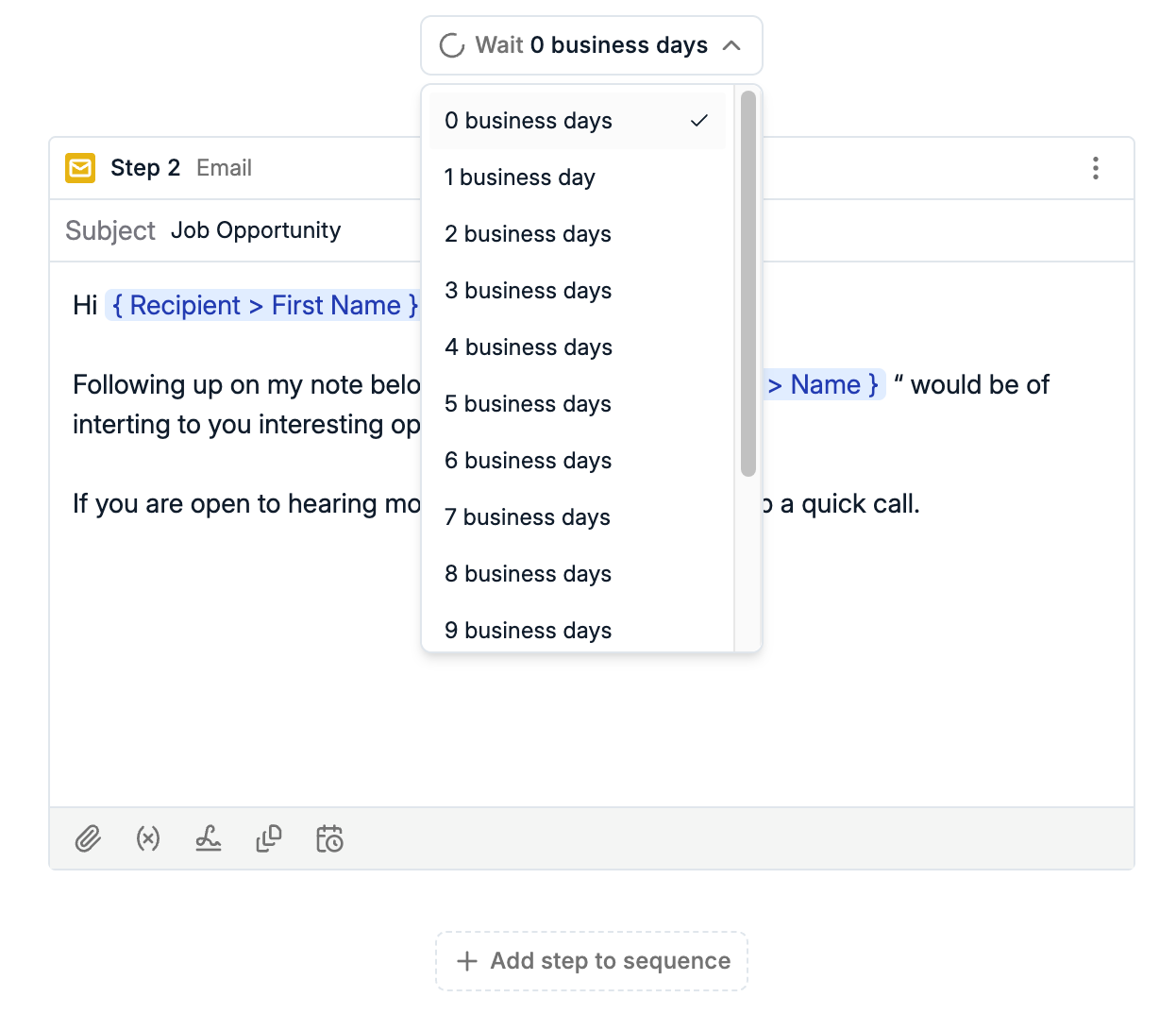
- Set a wait time in business days between each email step.
- Choose how many business days after enrollment the campaign starts for new recipients.
- Add new email steps to extend the sequence, each with its own timing.
Enroll recipients
Recipients are not contacted until they are enrolled.To enroll recipients:
- Open the campaign.
- Go to the Recipients tab.
- Add recipients.
- Click Enroll recipients.