

You can quickly navigate to this page using
Learn more about all shortcuts here.
G then M.Learn more about all shortcuts here.
Open the Companies view
From the left-hand navigation bar, select Companies to open your client list.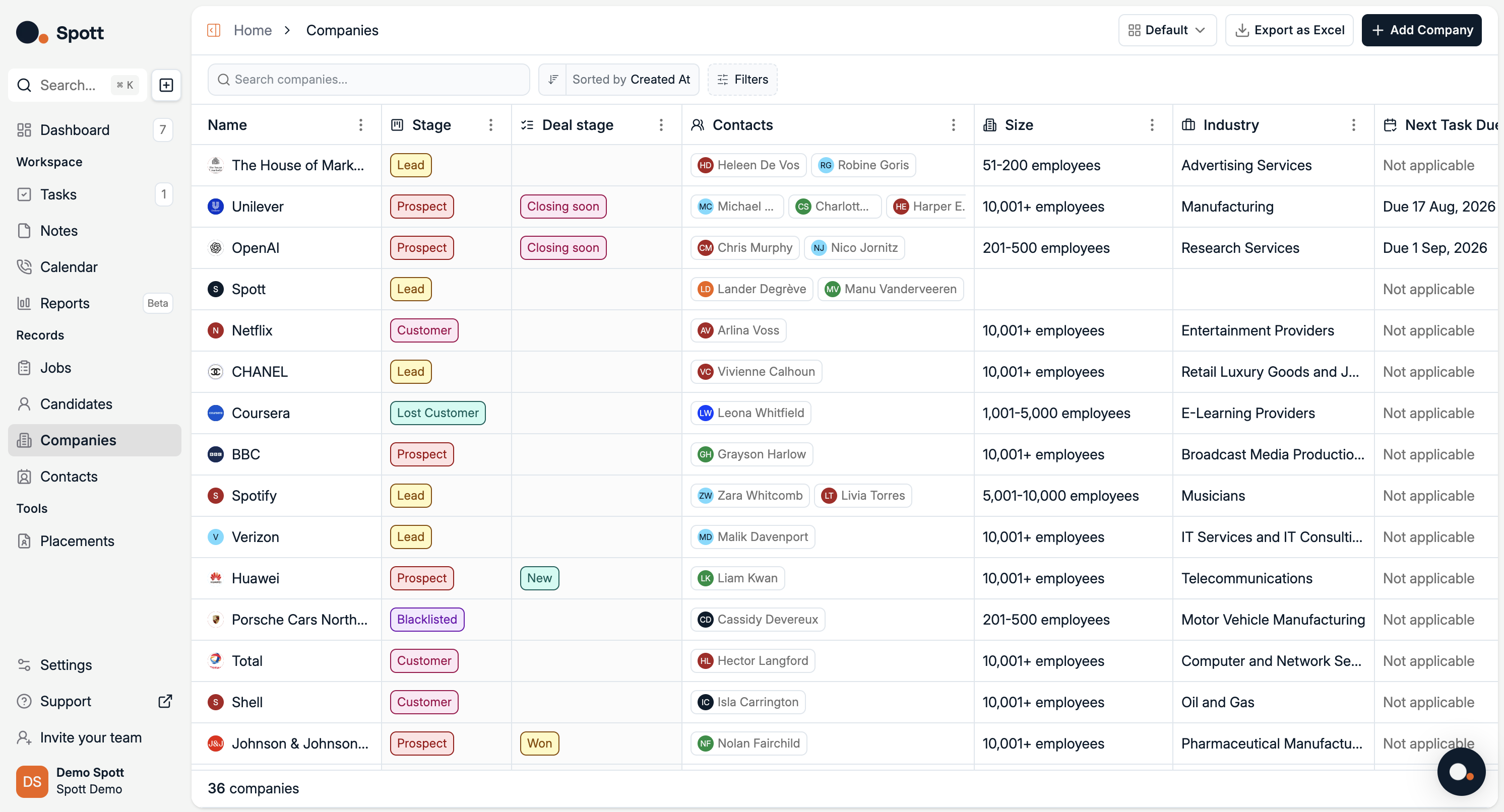
Add a new company
- Click the Add Company button in the top-right corner of the page.
- A pop-up form will appear where you can enter details about the company.
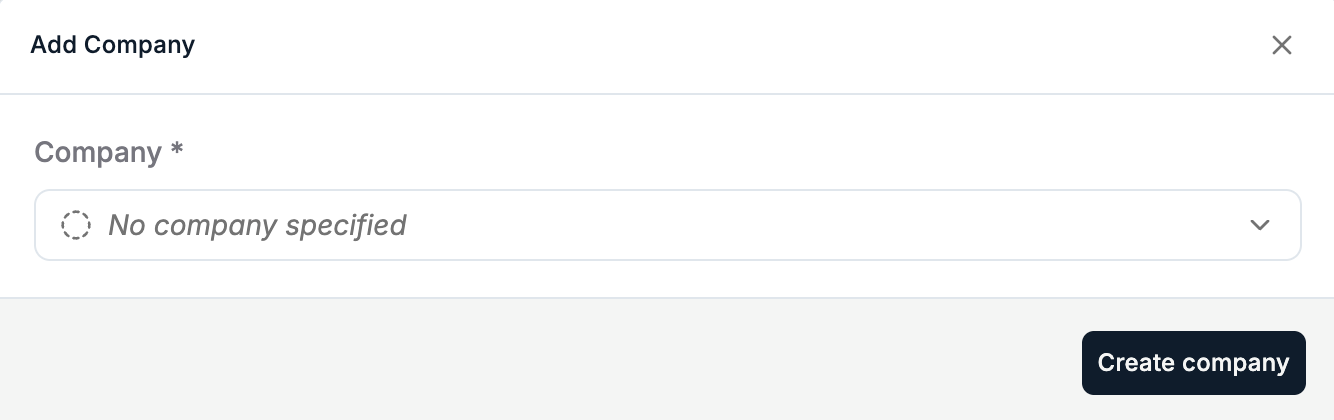
Save the company
Once you’ve entered all the necessary details, click Create company to add the new client company to your database.
Explore the company record
After creating the company, you can edit and add more information in the company record view.
This view contains five main tabs:
This view contains five main tabs:
- Jobs – Open or past job orders for this client.
- Notes – Internal notes for your team.
- Contacts – People linked to this company.
- Files – Uploaded documents.
- Tasks – To-dos and reminders.
- Placements – Candidates who have been placed at that company.
Customise attributes
In the Company Details panel, you can store important information such as Stage, Domain, Industry, Size, and Description.You can also click + Create new attribute to add your own custom fields — for example:
- Contract type
- Account manager
- Strategic priority level
- CRM source
Keeping your client records complete and using custom attributes will greatly improve your ability to search, filter, and report on your client data in Spott.