

Teams help you organize members by department, office, or project — making it easier to manage roles, visibility, and collaboration.
Go to Teams settings
- In Spott, go to Settings.
-
Scroll to the Admin section and click Teams.
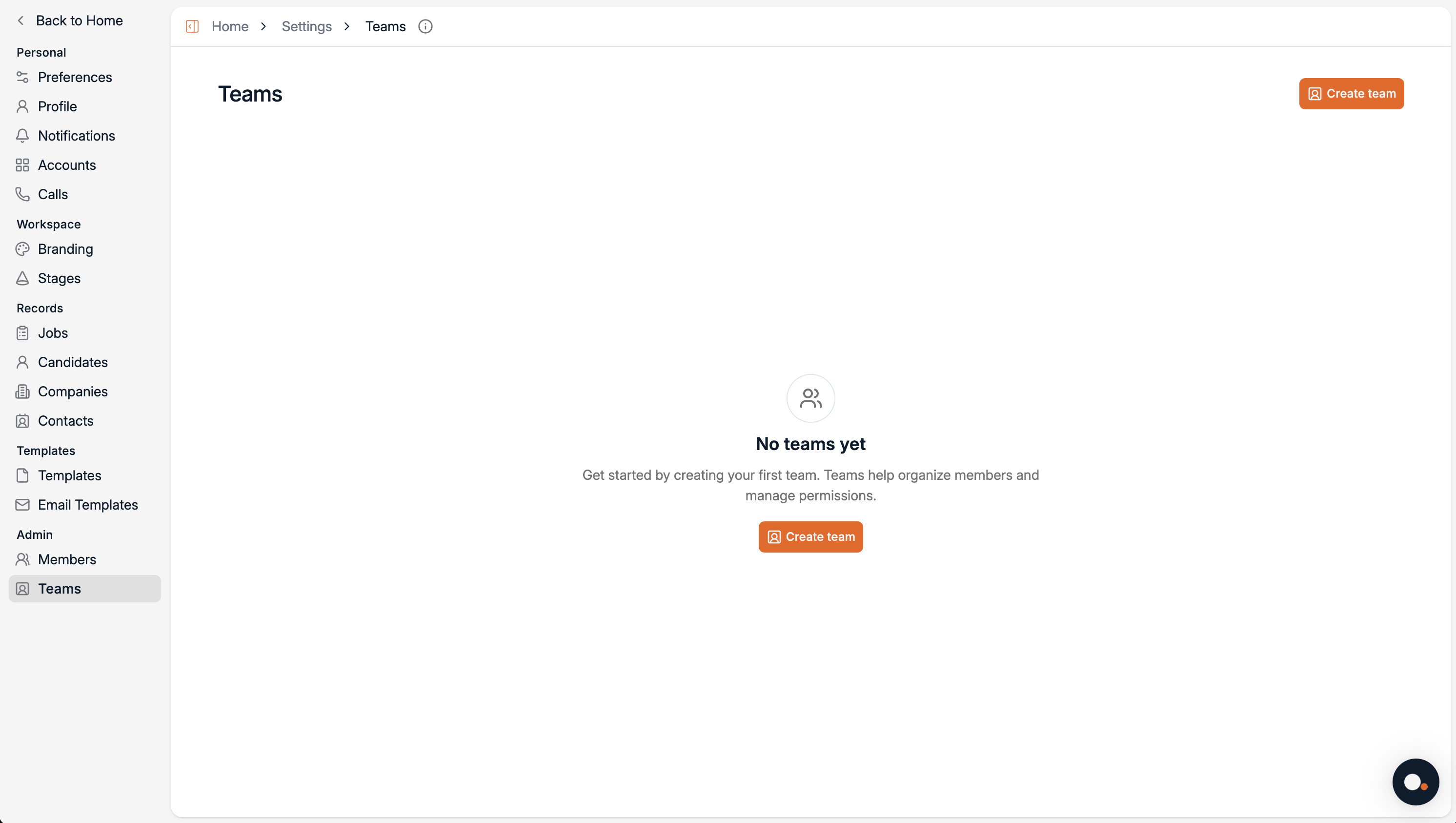
If no teams exist yet, you’ll see an empty state inviting you to create your first one.
Create a new team
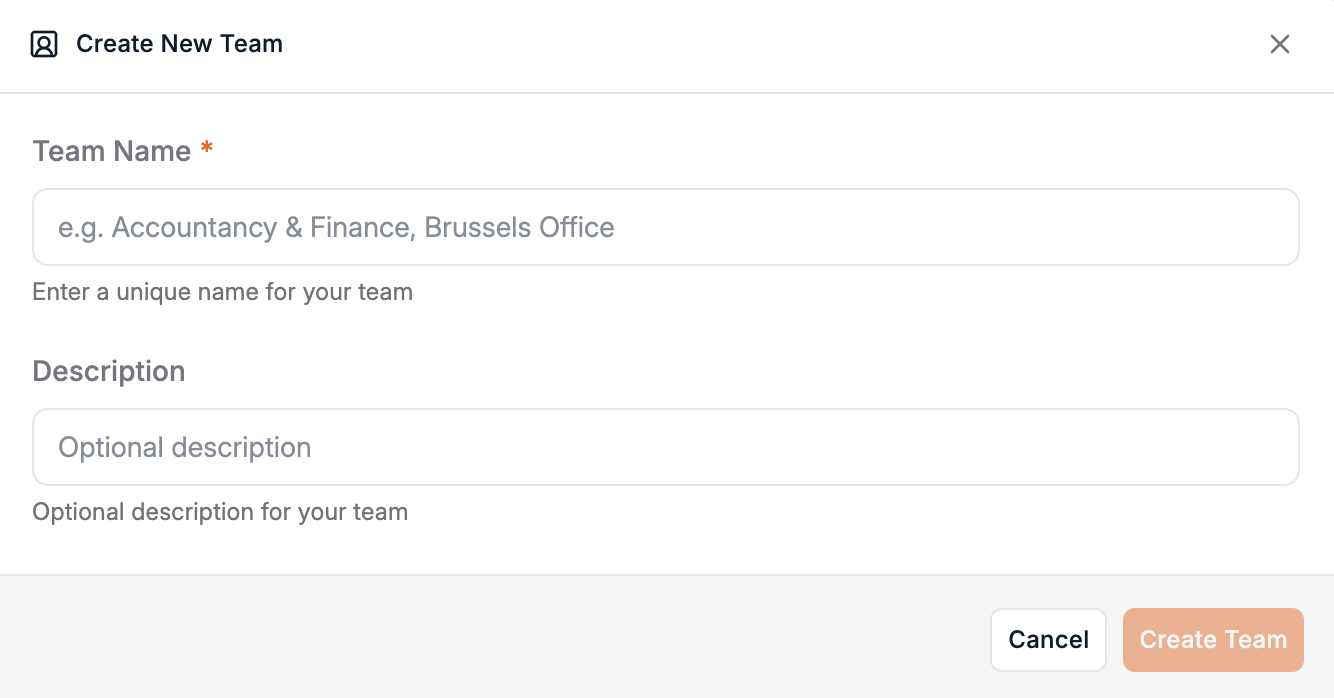
- Click Create team in the top-right corner.
- Enter a Team Name (for example: Accountancy & Finance, Brussels Office).
- Optionally, add a Description to clarify the team’s purpose.
-
Click Create Team.
View and manage existing teams
After creation, your new team will appear in the Teams list, along with the number of members and creation date.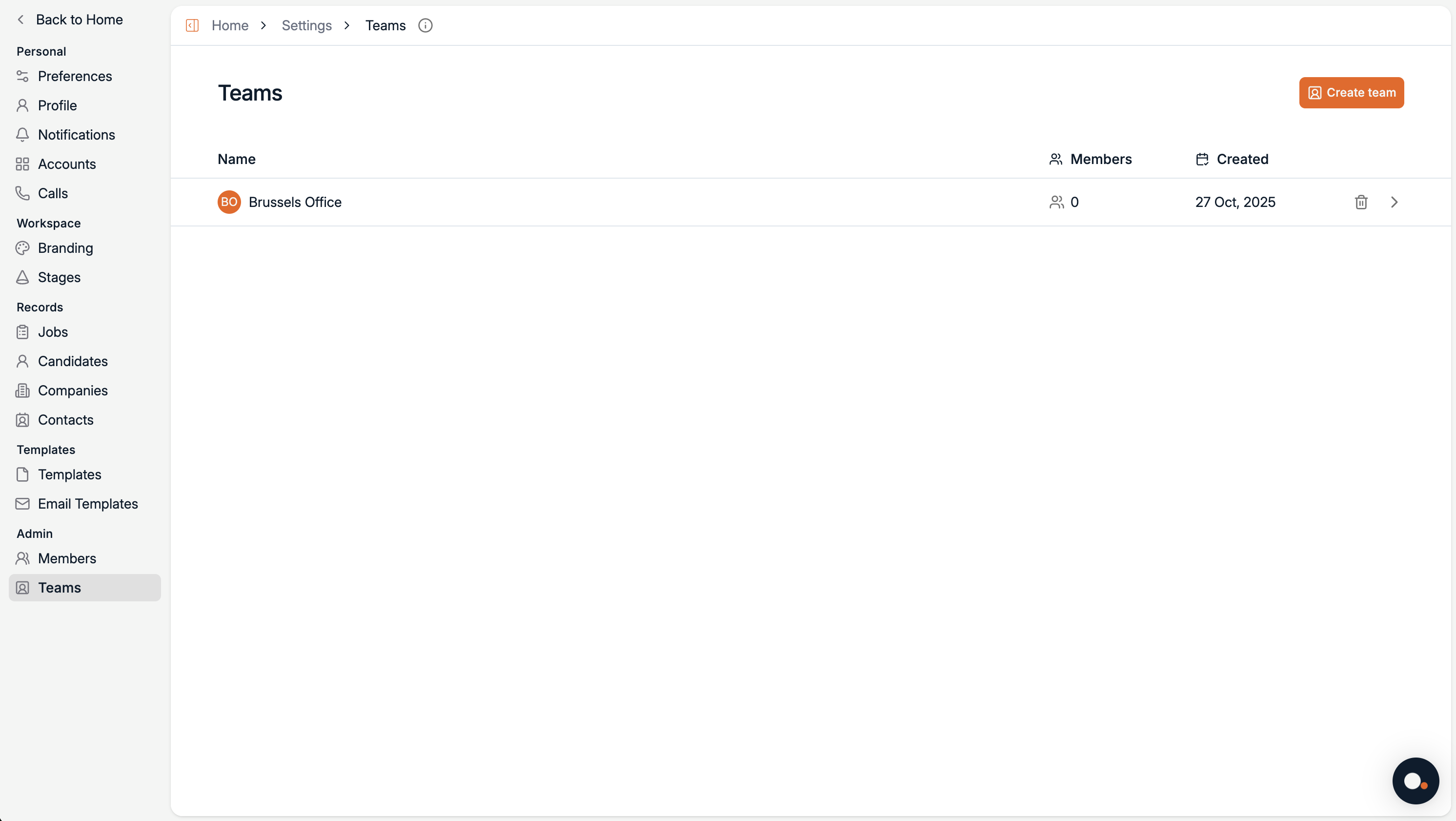
Add members to a team
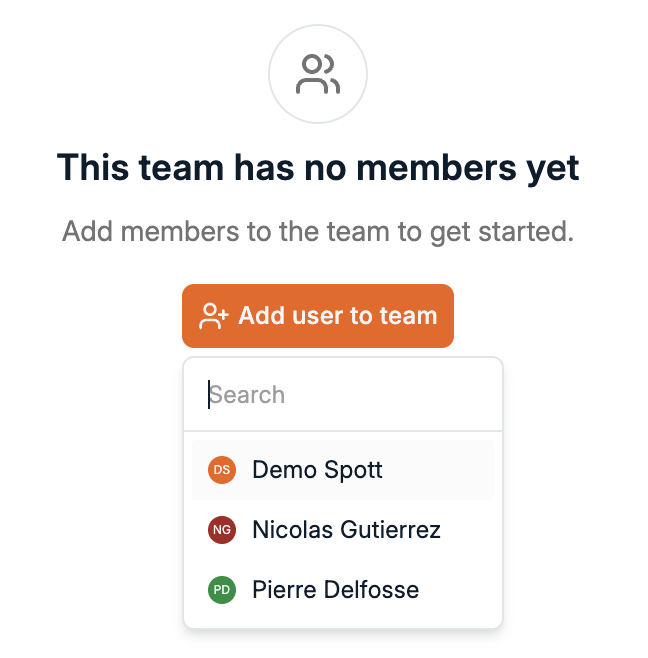
Inside the team view, click Add user to team to assign existing users to this group.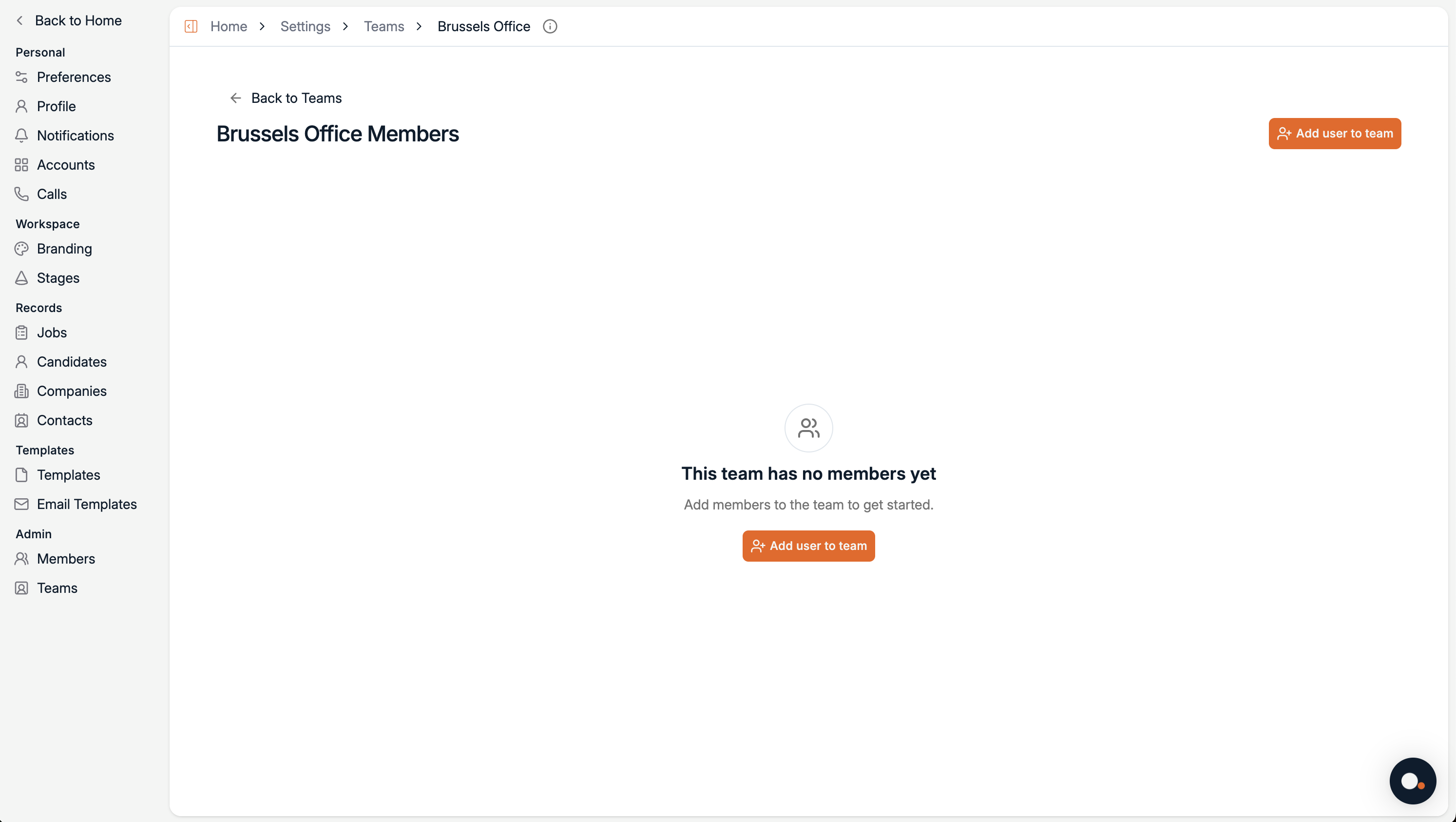
A user can belong to multiple teams. Their role and access level remain consistent across all teams they’re part of.
Teams are available for Admins and Owners. Standard users can see only the teams they belong to.